
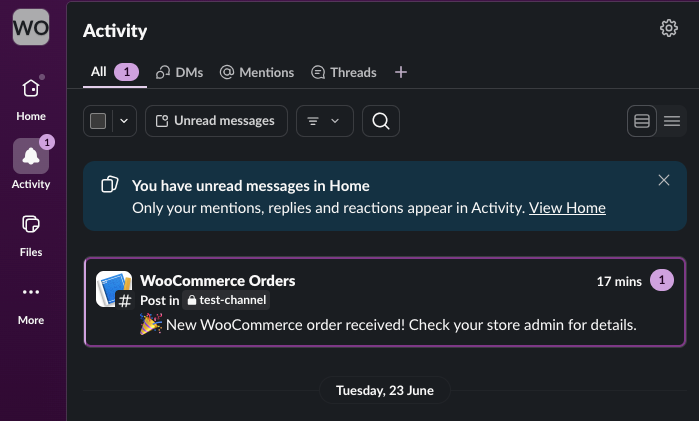
If you run a WooCommerce store, you already know the feeling of refreshing the orders page to check whether a sale came in. A WooCommerce Slack notification removes that habit entirely. Instead, every new order posts straight to a Slack channel your team already watches all day.
In this guide, you will learn how to set up a WooCommerce Slack notification without writing a single line of code and without paying for Zapier or Make.com. Best of all, the whole thing runs on a free plugin.
Why Send WooCommerce Orders to Slack?
Email order notifications get buried. In contrast, Slack is where most teams already live during the workday. As a result, routing orders into Slack means your fulfillment, support, and management teams see each sale the moment it happens.
Here are the most common reasons store owners want a WooCommerce Slack notification:
- First, faster fulfillment — your warehouse team reacts to orders in seconds, not on a schedule
- Second, shared visibility — everyone in the channel sees the same order feed, so nothing slips through
- Third, a live pulse on sales — watching orders roll in is genuinely motivating for small teams
- Finally, fewer missed high-value orders — a dedicated channel makes large or urgent orders impossible to overlook
The Usual Way Is Painful
Most tutorials solve this with Zapier or Make.com. However, those tools charge a monthly fee that scales with your order volume. In other words, the more you sell, the more you pay just to receive a notification.
Other guides ask you to write a custom PHP function and hook into woocommerce_new_order. Although that works, it means maintaining code inside your theme or a custom plugin. Consequently, every WooCommerce update becomes a small risk to your notifications.
There is a simpler path. AnyAPI is a free WooCommerce plugin that forwards order events to any API endpoint — including a Slack webhook — through a visual wizard. Because Slack Incoming Webhooks need no authentication, this is the easiest WooCommerce Slack notification you can build.
What You Need
To begin, gather three things:
- First, a Slack workspace where you can install an app
- Second, the free AnyAPI plugin installed on your WooCommerce site
- Third, a test order you can place to confirm everything works
Note that you do not need the paid plan for a basic WooCommerce Slack notification. The free Starter plan handles it.
How It Works (High Level)
The setup has two halves. First, Slack gives you a webhook URL — a unique address that posts messages to one channel, created through Slack’s Incoming Webhooks feature. Then, AnyAPI calls that URL every time a new order arrives.
In short, the flow looks like this:
New WooCommerce order → AnyAPI fires the webhook → Slack posts the message
Specifically, the whole configuration takes four steps inside AnyAPI:
- First, create a Slack Incoming Webhook and copy its URL
- Second, add a placeholder API key (the wizard requires one, even though Slack ignores it)
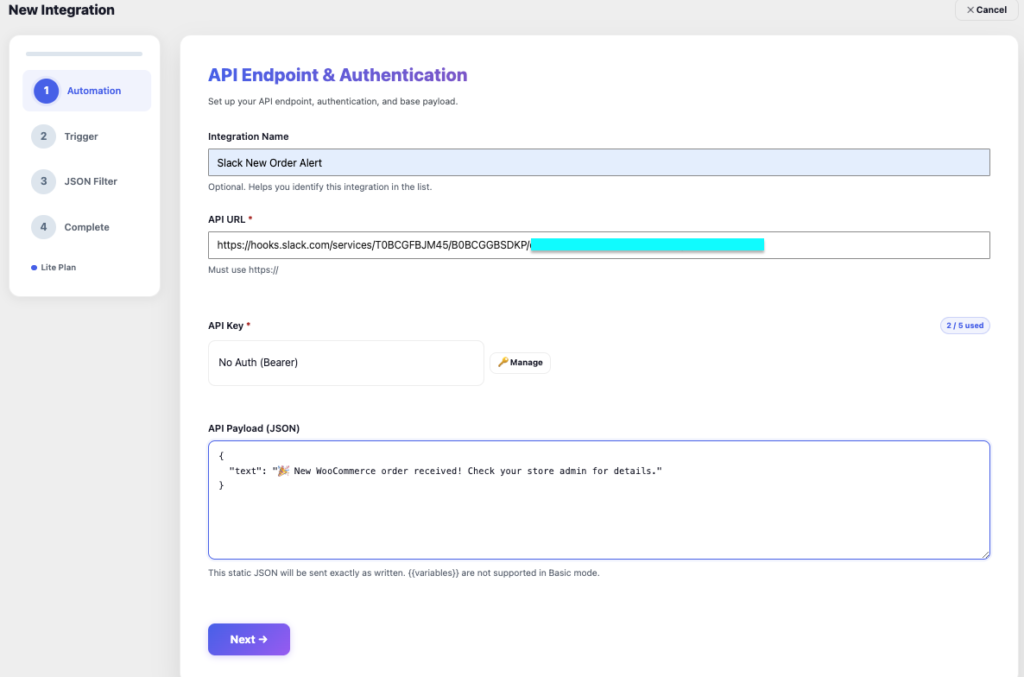
- Third, paste the webhook URL and a short JSON message into the AnyAPI wizard
- Finally, pick the New Order trigger and save
For the complete click-by-click walkthrough with screenshots, follow our Slack notification setup quick start. Below, we cover the key decisions so you understand what each step does.
The One Tricky Part: Slack’s Payload
Slack will not accept the full WooCommerce order object. Instead, it expects a small JSON payload with a single text key, like this:
{"text": "🎉 New WooCommerce order received! Check your store admin for details."}
In Basic mode, AnyAPI’s free Starter plan lets you paste exactly this static message into the payload field. As a result, Slack receives clean, valid JSON and posts your message. If you leave the payload empty instead, AnyAPI sends the entire order object — and Slack rejects it with an HTTP 400 error.
In practice, that single design choice is what makes a no-code WooCommerce Slack notification possible on the free plan.
Want Order Details in the Message?
Of course, a static “new order” alert is just the start. Most stores eventually want the order number, customer name, and total inside each Slack message.
The Lite plan unlocks dynamic placeholders. For example, you can write a payload like this:
{"text": "New order #{{order_id}} from {{billing_first_name}} — Total: {{order_total}} {{order_currency}}"}
Then, every WooCommerce Slack notification arrives fully personalized. Furthermore, Lite unlocks all nine order triggers, so you can also alert your team when an order ships, completes, or gets refunded. You can read more in our Order API Integration guide.
Testing Your WooCommerce Slack Notification
After you save the integration, place a test order. Within a few seconds, your message should appear in Slack.
If nothing shows up, open AnyAPI → API Logs. There, you can see the exact HTTP response Slack returned. For instance, a 200 means success, while a 400 usually means the payload was missing its text key. Each log entry records the full response body, so you can read the exact error Slack sent back.
Frequently Asked Questions
Is a WooCommerce Slack notification free?
Yes. The free AnyAPI Starter plan sends a static Slack message for every new order. You only need the paid Lite plan if you want order details inside the message or additional triggers.
Do I need to write any code?
No. You configure the entire WooCommerce Slack notification through a visual wizard. You never touch your theme files or write a webhook handler.
Why does Slack reject the full order data?
Because Slack Incoming Webhooks only accept a specific JSON shape with a text key. Therefore, AnyAPI lets you send a clean static payload instead of the full order object.
Can I send WooCommerce Slack notifications for shipped or refunded orders too?
Yes, but those triggers require the Lite plan. The free plan covers new orders, processing orders, and a general order watcher.
Get Started Today
A WooCommerce Slack notification is one of the fastest ways to keep your whole team in sync with your store. Because it runs on the free Starter plan, you can set it up today and decide later whether the Lite plan’s dynamic messages are worth it.
To set yours up, follow the step-by-step Slack notification setup guide, or compare plans on our pricing page.
Want the same automation for a spreadsheet? See our WooCommerce Google Sheets guide.
