
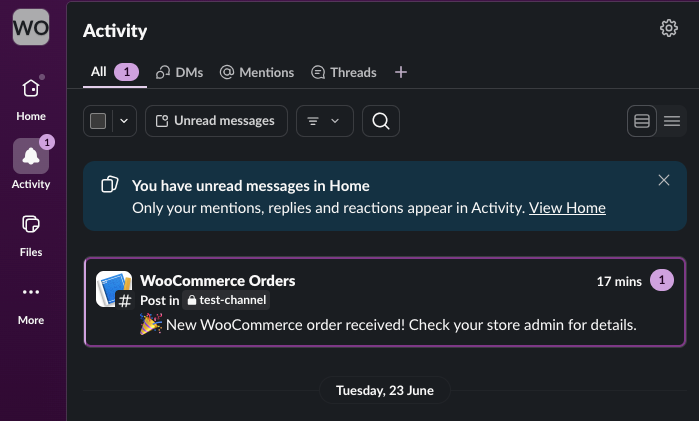
Slack notification setup. By the end, your team will see a Slack message every time a customer places an order.
For the bigger picture on why stores route orders into Slack, see our WooCommerce Slack notification overview.
Prerequisites
To begin, make sure you have the following ready:
- First, a Slack workspace where you have permission to install apps
- Second, AnyAPI installed and activated on your WooCommerce site (the free Starter plan is enough)
- Third, at least one test order in your WooCommerce store, or the ability to place one
Step 1: Create a Slack Incoming Webhook
First, open your Slack workspace and create a new Incoming Webhook for the channel where you want notifications.
To start, visit the Slack Incoming Webhooks page and click Create your Slack app. Then, pick From scratch, name the app (for example, WooCommerce Orders), and select your workspace.
Next, in the app settings sidebar, click Incoming Webhooks and toggle the feature on. After that, click Add New Webhook to Workspace at the bottom of the page.
Finally, choose the target channel and click Allow. Slack then generates a webhook URL that looks like this:
https://hooks.slack.com/services/T00000000/B00000000/XXXXXXXXXXXXXXXXXXXXXXXXCopy this URL. You will paste it into AnyAPI in Step 3.
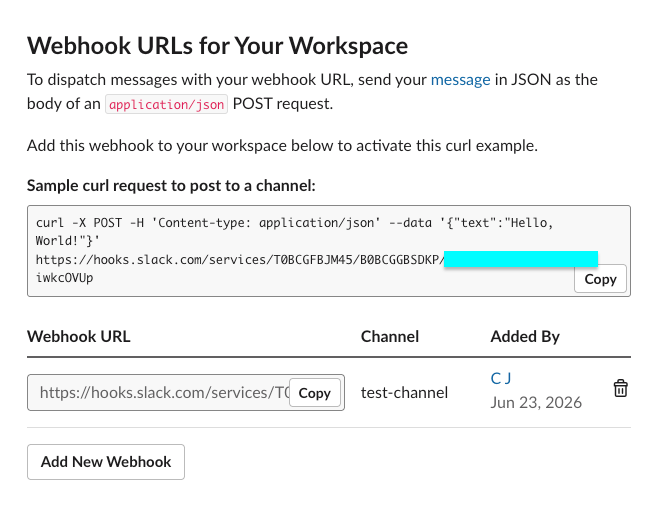
Step 2: Add an API Key for the Slack Notification Setup
Slack Incoming Webhooks need no authentication — the webhook URL itself acts as the credential. However, the AnyAPI wizard treats the API Key field as required, so you must add a placeholder entry before continuing.
In your WordPress admin, open AnyAPI → API Keys and click Add New Key. Then, fill in the following:
- First, Name:
Slack Placeholder(or anything memorable) - Second, Type:
Bearer Token - Third, Token: any non-empty value, for example
unused
After that, click Save. AnyAPI stores the placeholder for use in the next step.
Note that Slack ignores any Authorization header AnyAPI sends, because Slack Incoming Webhooks authenticate purely through the URL. As a result, the placeholder value never reaches a real authentication check on Slack’s side.
For full details on key types, see API Key Management.
Step 3: Configure the Slack Notification Setup in AnyAPI
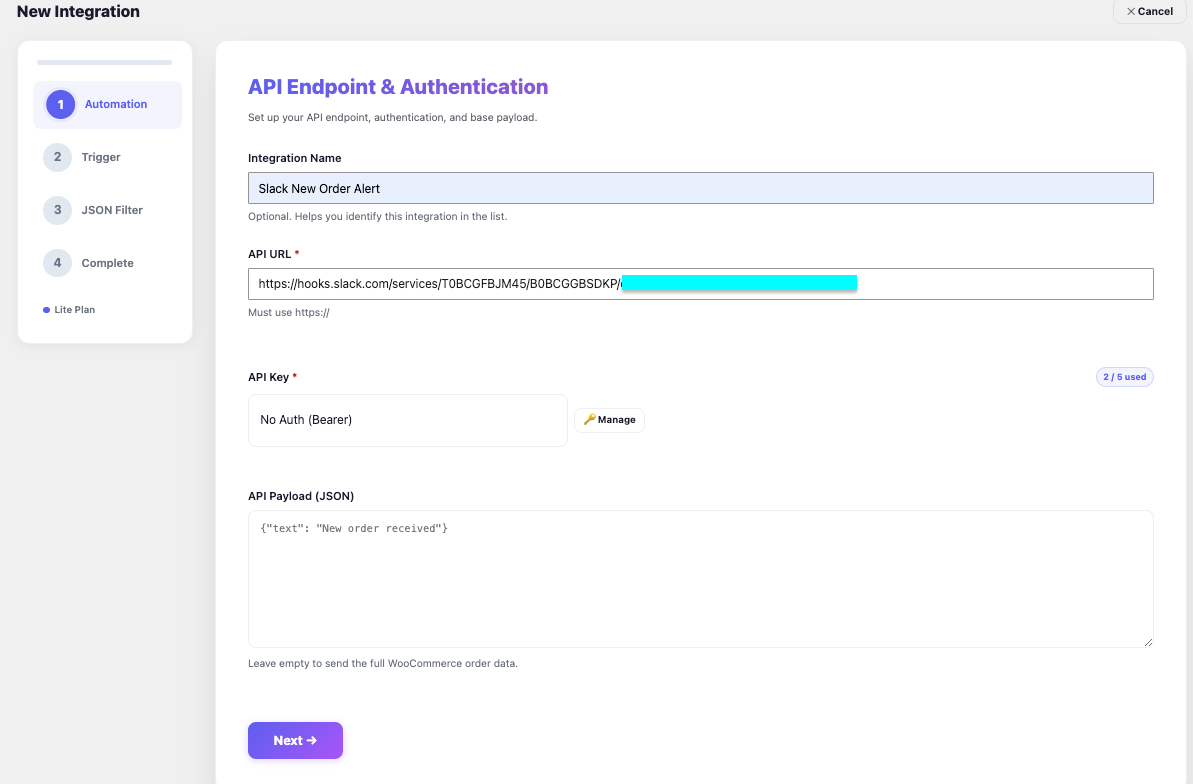
Next, open AnyAPI → Order API and click Add New Integration. The wizard opens on the Automation step, where you set the endpoint, authentication, and payload.
In this step, fill in the following:
- First, set the Integration Name to something memorable like Slack New Order Alert
- Second, paste the Slack webhook URL into the API URL field
- Third, select the placeholder key you just created from the API Key dropdown
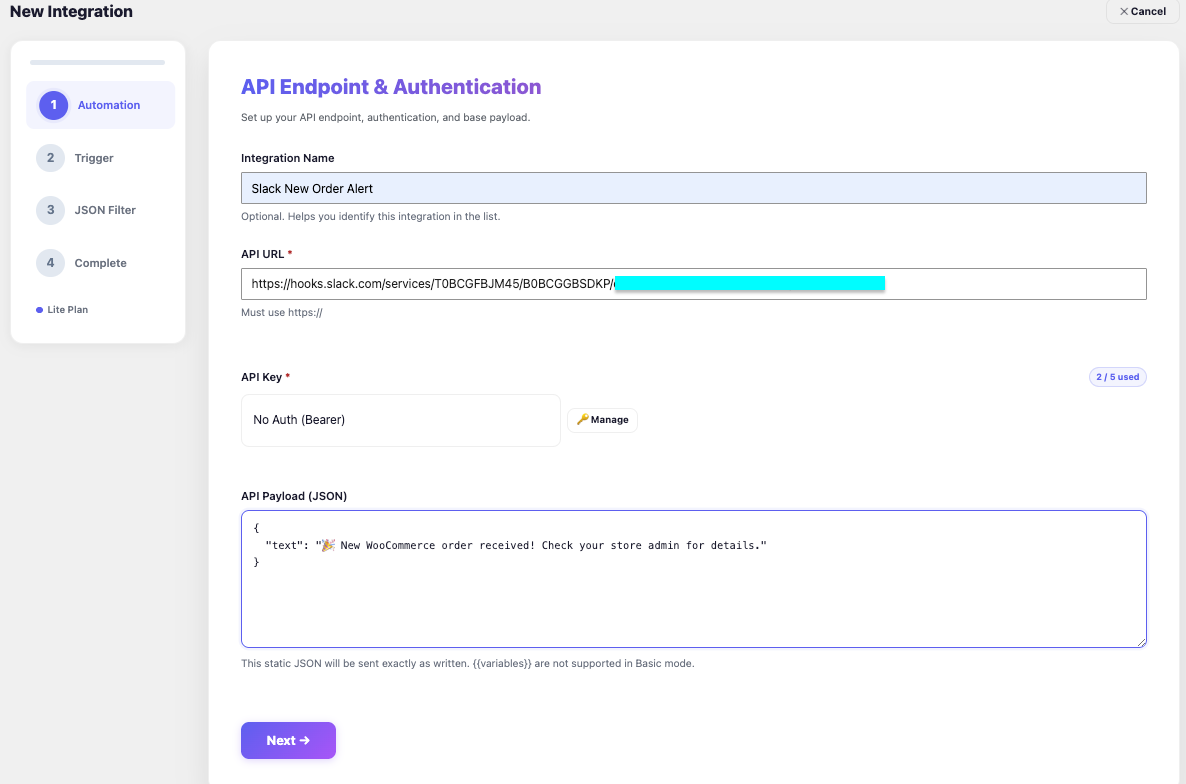
- Finally, paste this static JSON into the API Payload field:
{"text": "🎉 New WooCommerce order received! Check your store admin for details."}In particular, note that this message is static on the free Starter plan. Every order produces the same notification text. Consequently, you get a reliable signal that an order arrived, but the message itself carries no order-specific details. The “Going Further” section below shows how to add dynamic order data on the Lite plan.
After you’ve filled all four fields, click Next.
Step 4: Select the New Order Trigger
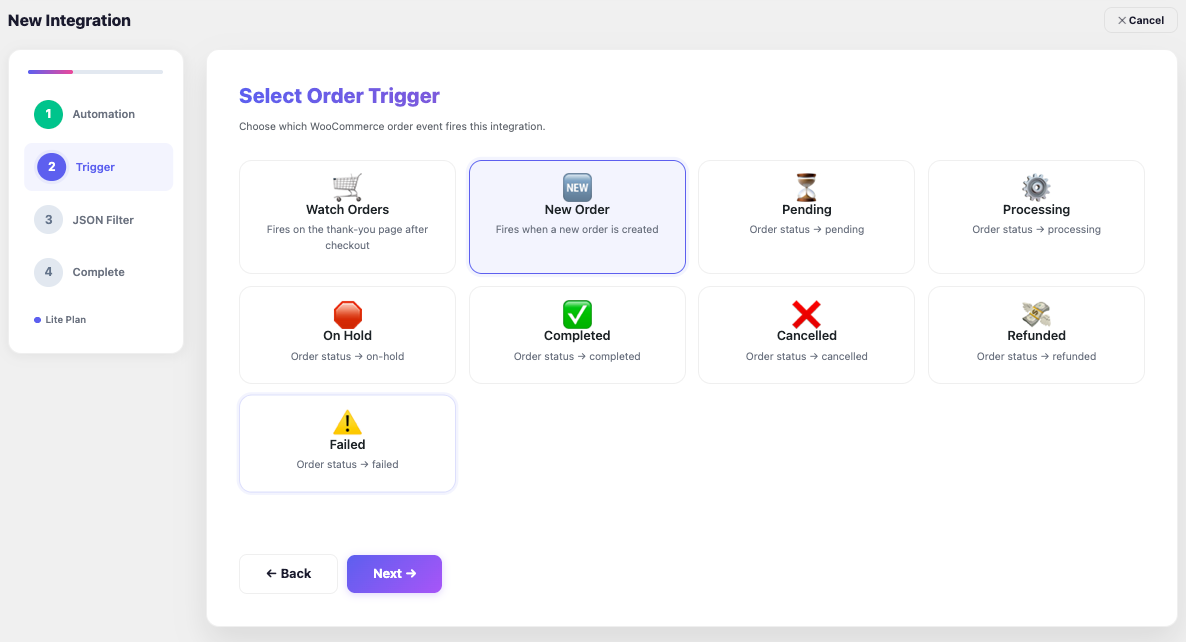
In the Trigger step, AnyAPI displays nine WooCommerce order events as cards. For this Slack notification setup, click the New Order card. As a result, AnyAPI will fire the webhook every time WooCommerce creates a new order.
Note that the free Starter plan supports three triggers: Watch Orders, New Order, and Processing. The remaining six triggers (Pending, On Hold, Completed, Cancelled, Refunded, Failed) require the Lite plan.
After that, click Next to move to the JSON Filter step.
Step 5: Confirm Basic Filter Mode
In the JSON Filter step, leave Basic selected. This is the default and the only mode available on Starter. The info box on this screen confirms how the Step 1 payload behaves:
Leave the Step 1 payload empty to forward the full WooCommerce order object. Enter a static JSON there to send exactly that instead.
{{variable}}placeholders are not interpolated in Basic mode.
Because you pasted a static JSON in Step 3, AnyAPI sends exactly that JSON to Slack. It will not forward the full WooCommerce order object. This is the behavior Slack needs.
Finally, click Review to move to the last step.
Step 6: Review, Save, and Test the Slack Notification Setup
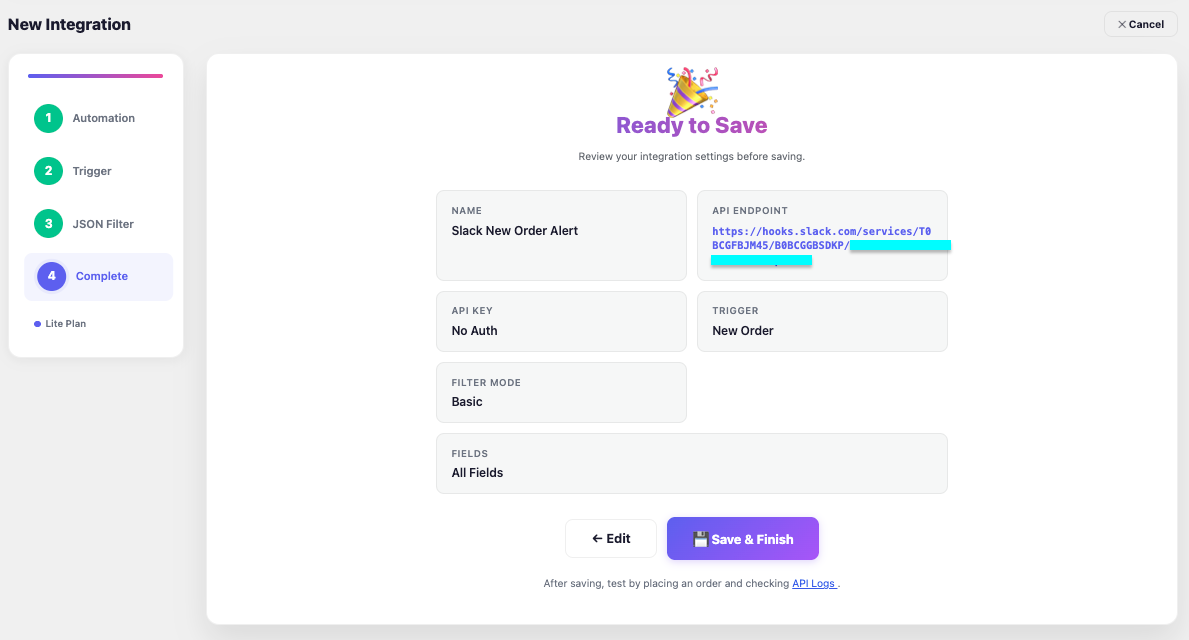
The Complete step shows a summary of every setting. Verify that:
- First, the API Endpoint matches your Slack webhook URL
- Second, the Trigger shows New Order
- Third, the Filter Mode shows Basic
Then, click Save & Finish. AnyAPI activates the integration and starts listening for new orders.
To test the setup, place a test order in your WooCommerce store. After checkout completes, switch to your Slack channel within a few seconds. You should see the notification message appear.
In addition, you can open AnyAPI → API Logs to confirm AnyAPI sent the request and Slack responded with HTTP 200.
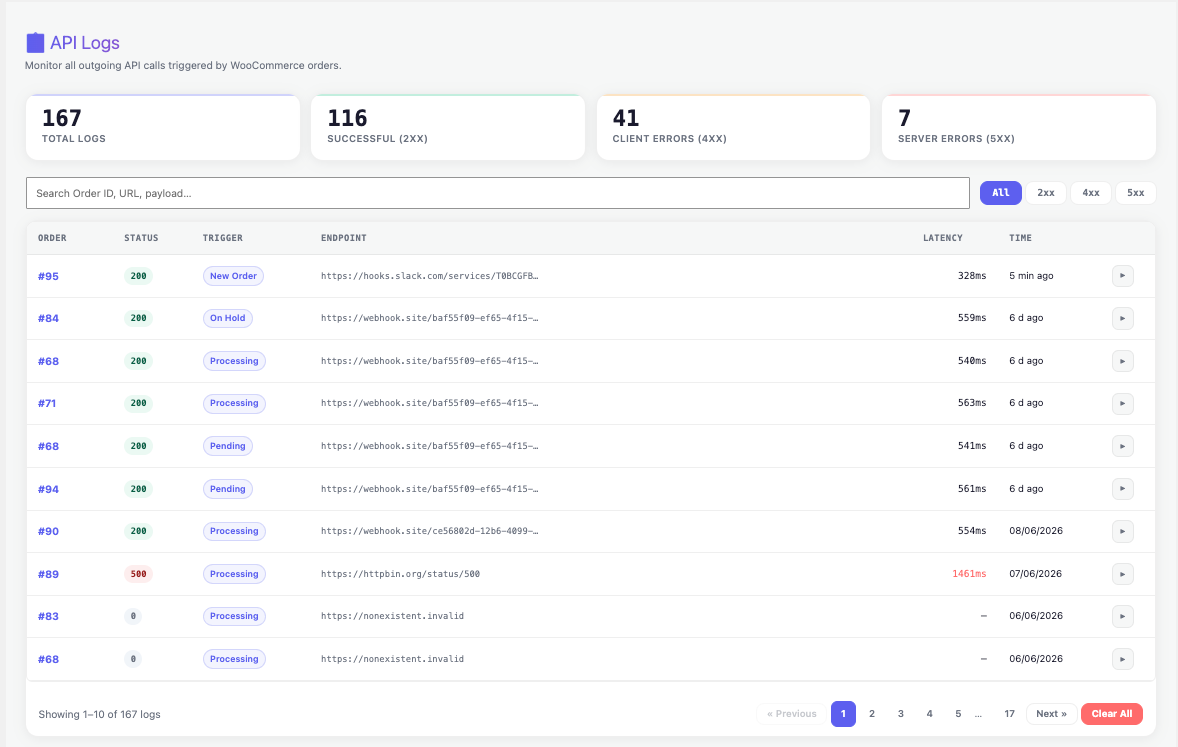
For deeper inspection, see the API Logs & Troubleshooting guide.
Going Further: Dynamic Order Variables (Lite)
Of course, a static message is a starting point. Most teams want each Slack notification to show the order number, customer name, and total.
On the Lite plan, the Expert filter mode in Step 5 unlocks {{variable}} placeholders. For instance, you can write:
{
  "text": "New order #{{order_id}} from {{billing_first_name}} {{billing_last_name}} — Total: {{order_total}} {{order_currency}}"
}
As a result, Slack receives a fully personalized message for every order. Furthermore, Lite unlocks the Advanced filter mode (pick fields visually) and all nine triggers. For the full variable list and filter modes, see JSON Filter Mode.
Troubleshooting
In practice, most Slack notification setup issues fall into four categories:
- HTTP 400 —
invalid_payload: First, check that your payload contains atextkey. Slack rejects any payload without it. In this case, the static JSON in Step 3 is the safe baseline. - HTTP 400 —
no_text: This means the payload reached Slack but thetextkey was empty. Next, verify the JSON you pasted in Step 3 has a non-empty string value. - HTTP 404 —
no_service: This usually means the webhook URL is wrong or you removed the app from Slack. After that, regenerate the webhook in Slack and update the API URL field in AnyAPI. - HTTP 200 but no message in Slack: In this case, verify the webhook posts to the correct channel. Sometimes a test webhook targets a private channel you forgot about.
For any other HTTP response, open AnyAPI → API Logs and inspect the response body. The log entry includes the exact error returned by Slack, which usually points straight to the fix.
Next Steps
You now have a working Slack notification setup for WooCommerce. From here, you might want to:
- First, explore the full Order API Integration guide to learn every option in the 4-step wizard
- Second, upgrade to the Lite plan to unlock dynamic
{{variable}}placeholders and all nine triggers - Finally, send the same order data to other tools like Google Sheets or WhatsApp by adding more integrations
Above all, the Starter plan stays free forever. You can run as many tests as you like before deciding whether the Lite plan fits your workflow.
Frequently Asked Questions
Slack Notification FAQ
Slack returns HTTP 200 but no message appears — what’s wrong?
An HTTP 200 means Slack accepted your request, so AnyAPI and your payload are working correctly. The message was almost certainly delivered — just not to the channel you are watching. This usually happens when the Incoming Webhook was created for a different or private channel than expected. Check which channel the webhook targets in your Slack app settings, and if needed, create a new webhook pointing at the correct channel and update the API URL in your AnyAPI integration.
My Slack webhook returns HTTP 400 (invalid_payload or no_text) — how do I fix it?
These are Slack-specific errors about your message body. invalid_payload means the JSON you sent has no text key, and no_text means the text key is present but empty — Slack rejects both. The fix is to make sure your payload is valid JSON containing a non-empty text value, for example {“text”: “New order received”}. The static JSON shown in the setup steps is a safe baseline. You can read the exact Slack error in AnyAPI → API Logs.
Do I need a Slack app or a paid Slack plan to receive WooCommerce order alerts?
You do not need a paid Slack plan. You do need a Slack Incoming Webhook, which you create by making a free Slack app “from scratch” in a workspace where you have permission to install apps, enabling Incoming Webhooks, and adding a webhook to your chosen channel. Slack then gives you a webhook URL that acts as the credential — the URL itself authenticates the request, so no API token or Slack subscription is required for AnyAPI to post messages.
Why does my Slack notification show the same message for every order?
On the free Starter plan, AnyAPI runs in Basic filter mode, which sends the exact static JSON you entered and does not interpolate {{variable}} placeholders. That is why every order produces identical Slack text — it confirms an order arrived but carries no order details. To show the order number, customer name, and total in each message, upgrade to Lite and use Expert filter mode, which enables placeholders such as {{order_id}}, {{billing_first_name}}, and {{order_total}} inside your payload.
Can I send WooCommerce order notifications to Slack for free?
Yes. AnyAPI’s free Starter plan can post a Slack message every time a new WooCommerce order arrives, with no code, no Zapier, and no monthly fees. You create a free Slack Incoming Webhook, paste its URL into an AnyAPI integration, and choose the New Order trigger. On the free plan the message is static — the same text fires for every order, which is a reliable “an order came in” signal. Order-specific details like the number and total require the Lite plan’s dynamic variables.