
If you run a store, a WooCommerce Google Sheets log is one of the most useful automations you can build. Instead of exporting a CSV every week, you get a live spreadsheet that fills itself the moment each order comes in. As a result, your whole team can sort, filter, and share order data without ever opening the WordPress admin.
In this guide, you will build a WooCommerce Google Sheets integration that needs no OAuth, no Zapier subscription, and no custom plugin code. Specifically, you will connect WooCommerce to a free Google Apps Script using the AnyAPI plugin. Best of all, you can copy and paste the script straight from this page.
Why Send WooCommerce Orders to Google Sheets?
A spreadsheet is still the fastest place to slice order data. Because Google Sheets is shared and always current, it suits teams that work outside the WooCommerce dashboard.
Here are the most common reasons store owners want a WooCommerce Google Sheets log:
- First, a shared order history — your accountant, fulfillment, and marketing team all read the same live sheet
- Second, easy reporting — you can pivot, chart, and filter orders without a reporting plugin
- Third, a lightweight backup — every order lands in a second system outside your database
- Finally, quick handoffs — you can feed the sheet into other tools your team already uses
The Usual Way Is Painful
Most tutorials solve this with Zapier or Make.com. However, those tools charge a monthly fee that grows with your order volume. In other words, you pay every month just to copy your own data into a spreadsheet.
Other guides push you toward the Google Sheets API and full OAuth 2.0. Although that works, OAuth means creating a Google Cloud project, configuring consent screens, and refreshing access tokens. Consequently, a “simple” spreadsheet log turns into an afternoon of credential wrangling.
There is a simpler path. Google Apps Script lets you publish a tiny web endpoint that writes to your sheet, and that endpoint needs no OAuth at all. Then, AnyAPI — a free WooCommerce plugin — posts each order to that endpoint. In short, you skip both the monthly fees and the OAuth setup.
How the WooCommerce Google Sheets Integration Works
The setup has two halves. First, Google Apps Script gives you a Web App URL — a private address that writes a row to your sheet whenever it receives data. Then, AnyAPI calls that URL every time a new order arrives.
In practice, the flow looks like this:
New WooCommerce order → AnyAPI POSTs the order → Apps Script writes a row → Google SheetsBecause the Web App URL itself acts as the credential, you never deal with OAuth tokens. As a result, this is the shortest route to a working WooCommerce Google Sheets log.
What You Need for Your WooCommerce Google Sheets Log
To begin, gather three things:
- First, a Google account with access to Google Sheets and Apps Script
- Second, the free AnyAPI plugin (version 2.0.4 or later) installed on your WooCommerce site
- Third, a test order you can place to confirm everything works
Note that the free Starter plan is enough to get orders flowing into your sheet. Later, we will show what the Lite plan adds.
Step 1: Create Your WooCommerce Google Sheets Log
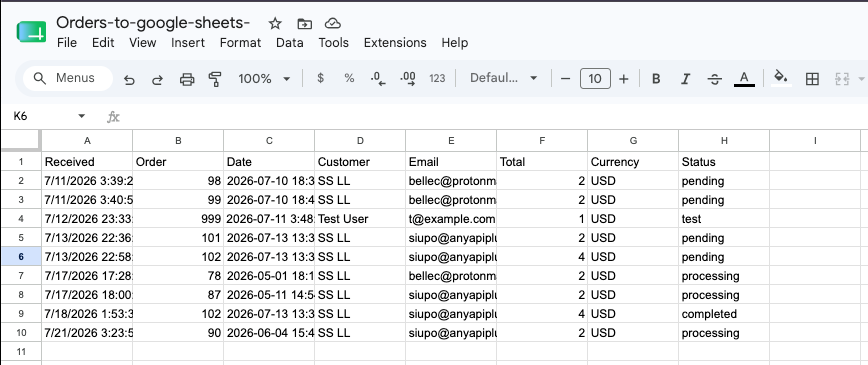
First, create a new Google Sheet and name the first tab Orders. Then, add a header row so your columns stay readable, for example: Received, Order, Date, Customer, Email, Total, Currency, Status.
At this point, the sheet is empty. Next, we will give it a way to receive data.
Step 2: Add the Google Apps Script
Now, open Extensions → Apps Script from inside your sheet. Then, delete the placeholder code and paste the script below. This script receives each order from AnyAPI and appends one row to your WooCommerce Google Sheets log.
javascript
function doPost(e) {
  var lock = LockService.getScriptLock();
  lock.tryLock(30000); // stop two orders from writing at the same instant

  try {
    var data    = JSON.parse(e.postData.contents);
    var billing = data.billing || {};
    var created = (data.date_created && data.date_created.date) ? data.date_created.date : '';
    var sheet   = SpreadsheetApp.getActiveSpreadsheet().getSheetByName('Orders');

    sheet.appendRow([
      new Date(),                                                    // Received (server time)
      data.id,                                                       // Order
      created,                                                       // Date
      (billing.first_name || '') + ' ' + (billing.last_name || ''), // Customer
      billing.email || '',                                          // Email
      data.total,                                                    // Total
      data.currency,                                                 // Currency
      data.status                                                    // Status
    ]);

    return ContentService
      .createTextOutput(JSON.stringify({ result: 'success' }))
      .setMimeType(ContentService.MimeType.JSON);

  } catch (err) {
    return ContentService
      .createTextOutput(JSON.stringify({ result: 'error', message: err.message }))
      .setMimeType(ContentService.MimeType.JSON);

  } finally {
    lock.releaseLock();
  }
}
Essentially, doPost reads the JSON that AnyAPI sends, then writes the fields into a new row. Notably, WooCommerce nests some values, so the script reads the customer from data.billing and the date from data.date_created.date. Furthermore, the lock prevents two simultaneous orders from clashing, and the response tells AnyAPI whether the write succeeded.
Step 3: Deploy the Apps Script as a Web App
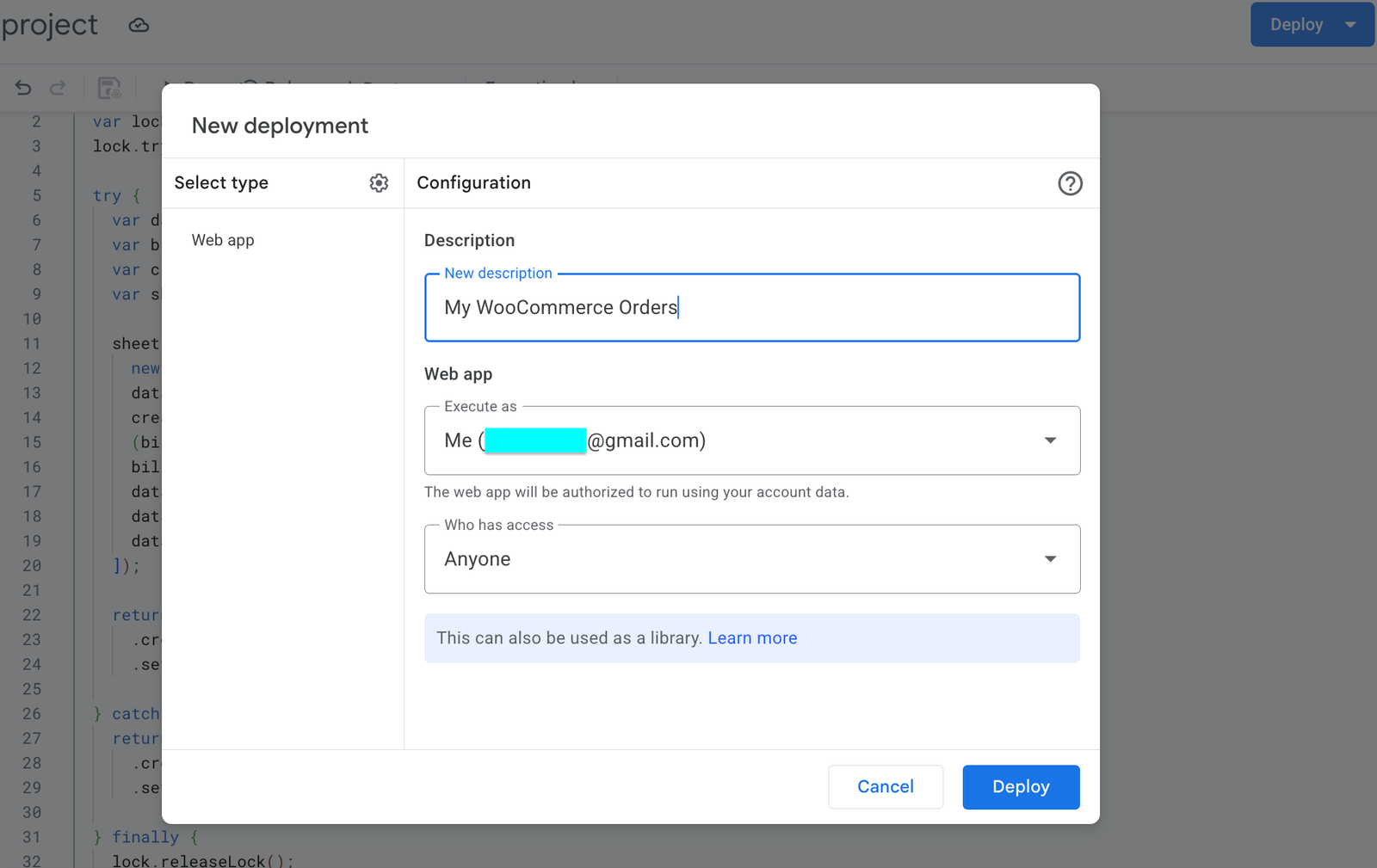
After that, click Deploy → New deployment. Then, click the gear icon and select Web app as the deployment type. Next, fill in the settings:
- First, add a short Description, such as “My WooCommerce Orders” — this labels the version so you can tell deployments apart later
- Second, set Execute as to Me — so the script writes to your sheet using your own access
- Finally, set Who has access to Anyone — so AnyAPI can reach the URL without signing in
Then, click Deploy, approve the permission prompt once, and copy the Web app URL (it ends in /exec). Consequently, you now hold a single address that appends a row to your sheet — no OAuth, no API keys, no Google Cloud project.
One rule matters for later: whenever you edit the script, you must publish a new version before the change goes live. To do that, open Deploy → Manage deployments, click the edit (pencil) icon, set Version to New version, and deploy again. Otherwise, your /exec URL keeps running the old code.
Step 4: Connect AnyAPI to Your WooCommerce Google Sheets Log
Now, open AnyAPI → Order API in your WordPress dashboard and start a new integration. Then, work through the wizard.
Add a Placeholder API Key First
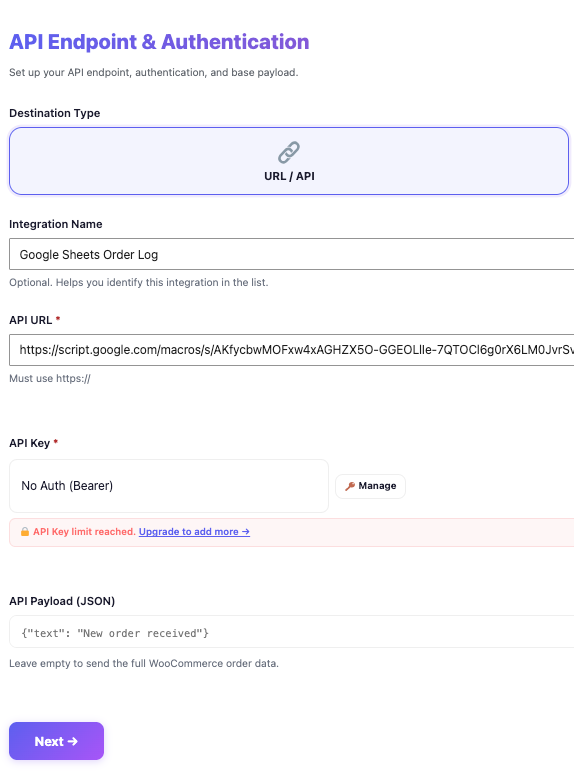
The Apps Script URL needs no authentication. However, the AnyAPI wizard still requires you to select an API key before it lets you continue. Therefore, create one placeholder key first — any name with a Bearer type and a dummy value works, because Apps Script simply ignores it. For details, see the API Key Management guide.
Fill In Step 1 (Automation)
On the first wizard step, enter these values:
- First, a Name, such as “Google Sheets Order Log”
- Second, the API Endpoint — paste your Apps Script Web App URL
- Finally, the API Key — pick the placeholder key you just created
Note that AnyAPI always sends the request as a POST, which is exactly what the Apps Script doPost function expects. In addition, there is no HTTP method setting to configure — POST is automatic.
Pick the Trigger
Next, on the Trigger step, choose New Order so the sheet logs every incoming order.
Choose What Data to Send
Then, on the JSON Filter step, leave the mode on Basic. In Basic mode, AnyAPI sends the full order, and the script above simply picks the fields it needs. As a result, every store on the free Starter plan can complete this integration today. Finally, review the summary and click Save & Finish. For a deeper walkthrough of these steps, see the Order API Integration guide.
Testing Your WooCommerce Google Sheets Log
After you save the integration, place a test order. Within a few seconds, a new row should appear in your Orders sheet.
If nothing shows up, open AnyAPI → API Logs. There, you can read the exact HTTP response your Apps Script returned. For instance, a 200 means the row was written, while any error status shows the message your script sent back. As a result, you can debug the whole WooCommerce Google Sheets pipeline from one screen.

Trim Your WooCommerce Google Sheets Payload (Lite)
Basic mode sends the entire order object, which includes many fields your sheet ignores. If you would rather send a lean, hand-picked payload, the Lite plan adds an Advanced filter mode that lets you pick fields visually — no JSON to write at all.
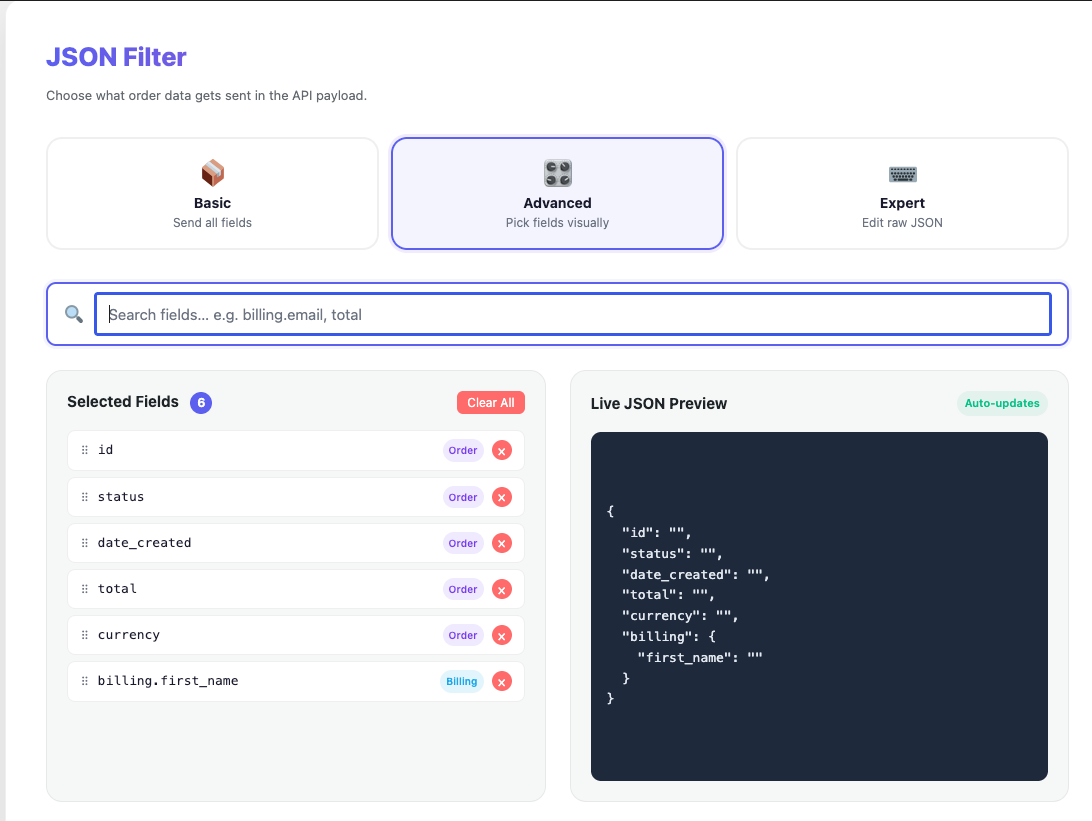
To use it, open the JSON Filter step and choose Advanced. Then, search and click the fields you want, such as id, status, date_created, total, currency, and billing.first_name. Meanwhile, a Live JSON Preview shows the exact shape AnyAPI will send.
One Preview Detail Worth Knowing
Importantly, the preview shows some nested fields as empty. For example, date_created appears as "date_created": "". In reality, AnyAPI still sends the full nested object, so your script keeps reading data.date_created.date exactly as before. In other words, the Advanced payload uses the same WooCommerce field names and nesting as Basic mode — therefore the very same Apps Script works without a single change.
Logging Products, Too
Furthermore, Advanced mode returns line items as a clean array, which lets you record what each customer bought. Specifically, when you pick a Line Items field, AnyAPI sends "line_items": [ { "id": 49 } ]. Because it is a proper array, you can count the items with one extra line:
javascript
var itemCount = (data.line_items || []).length; // add this before appendRow, then log itemCountTo capture product names or quantities as well, simply pick the matching Line Items fields in the picker and read them from each array entry. In short, Advanced mode turns a basic order log into a full order-and-product record. To compare what each plan sends, see the Free vs Lite comparison.
Frequently Asked Questions
Is a WooCommerce Google Sheets integration free?
Yes. Google Apps Script is free, and the AnyAPI Starter plan sends orders at no cost using Basic mode. You only need the Lite plan if you want to hand-pick fields or log product line items.
Do I need OAuth or a Google Cloud project?
No. Because the Apps Script Web App URL acts as the credential, you skip OAuth entirely. In practice, that is the whole point of the Apps Script approach.
Do I have to write any WooCommerce code?
No. You paste one ready-made Apps Script, then configure AnyAPI through a visual wizard. As a result, you never edit your theme or add a custom plugin.
Why does the date column need special handling?
Because WooCommerce sends the creation date as a nested object, not a plain string. Therefore, the script reads data.date_created.date to pull out the readable timestamp.
Get Started Today
A WooCommerce Google Sheets log gives your team a live, shareable view of every sale without a single monthly fee. Because it runs on the free Starter plan, you can build it today and upgrade to Lite only when you want a leaner payload or product-level detail.
To set yours up, follow the Order API Integration guide, read the official Google Apps Script Web Apps documentation, or compare plans on our pricing page. You can also see the same pattern applied to chat in our WooCommerce Slack notification guide.
