
Your WooCommerce API logs show what happened every time AnyAPI sends an integration request.
When a WooCommerce order triggers an integration, AnyAPI records the result so you can see whether the request was sent successfully, what response came back, and where a failure may have occurred.
In this guide, you will learn how to read WooCommerce API logs, understand common HTTP errors, review automatic retries, and troubleshoot failed WooCommerce integrations.
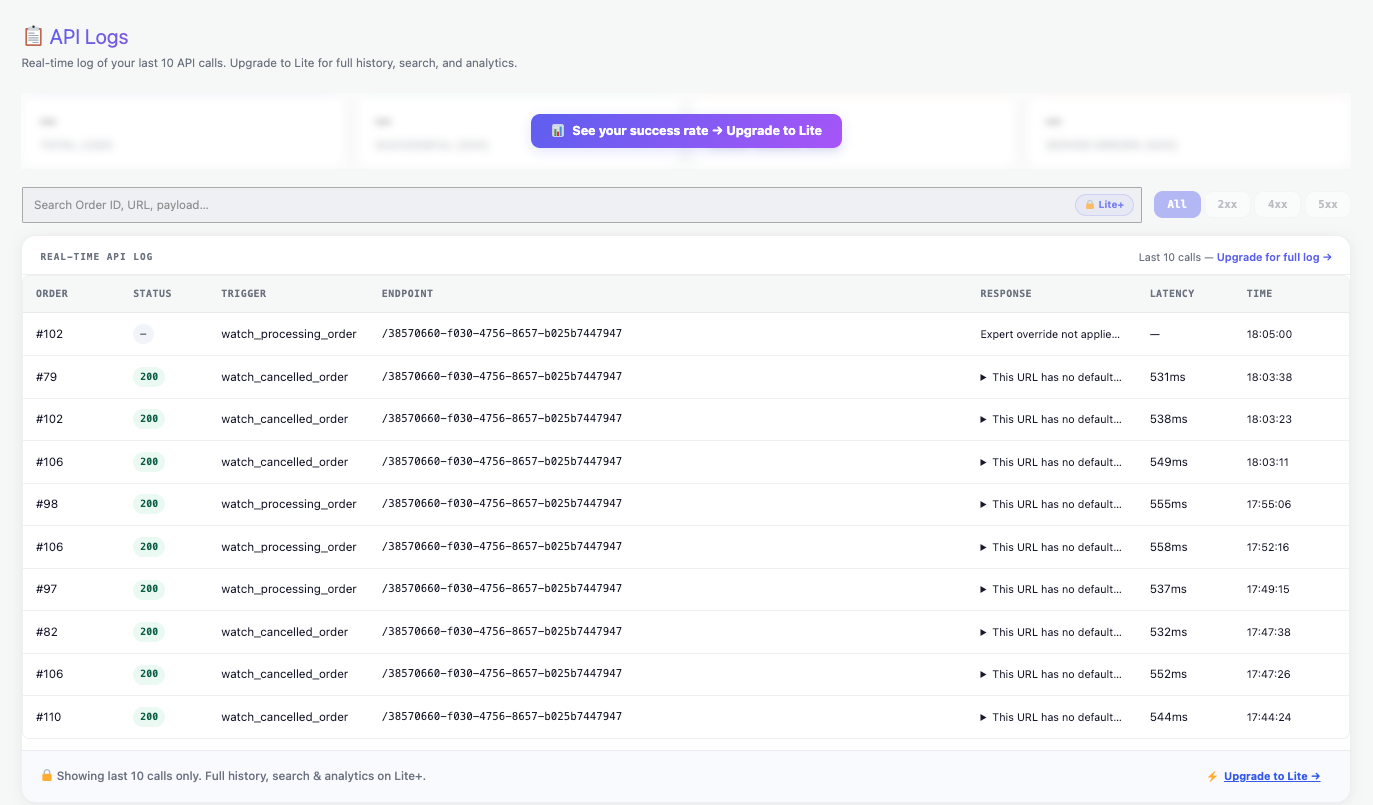
AnyAPI records each WooCommerce API request and the response returned by the destination service.What WooCommerce API logs capture
Each API log entry records information about an integration request and the response returned by the receiving service.
Depending on the request, the log can include:
- Time — When the request was sent.
- Method — The HTTP method used, such as GET, POST, PUT, PATCH, DELETE, or Email where applicable.
- Endpoint — The destination URL used for the request.
- Status — The HTTP response status returned by the receiving service.
- Latency — How long the request took to receive a response.
- Response — The response body returned by the receiving API.
These details help you determine whether a request reached its destination and what happened after it arrived.
For Lite users, the API Log also provides deeper history and troubleshooting tools, including access to the request payload.
Starter vs Lite: WooCommerce API log features
The amount of API log history and the available troubleshooting tools depend on your AnyAPI plan.
Starter
Starter gives you access to the latest 10 API calls.
This is useful for checking recent requests immediately after creating or testing an integration.
Lite
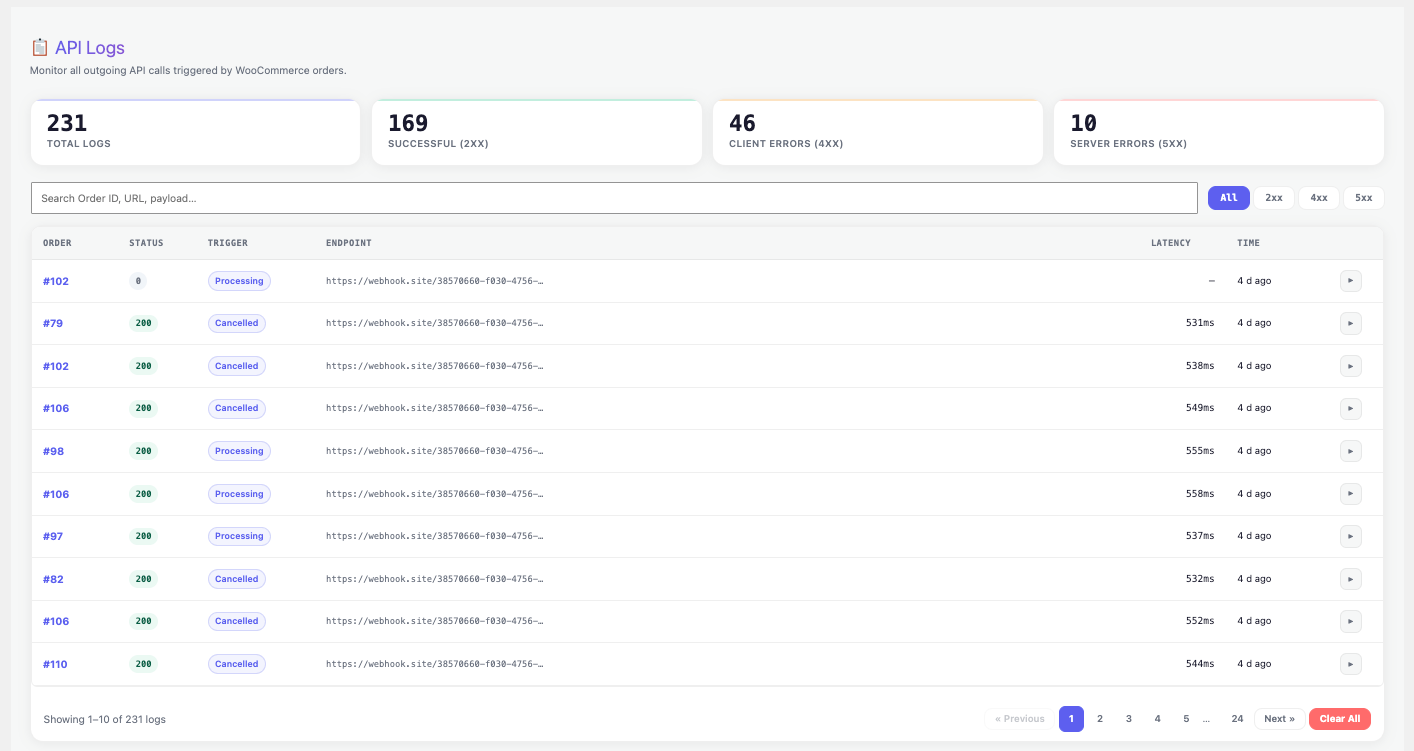
Lite provides the full API log experience, including:
- Full API call history
- Search by order ID, URL, or payload
- HTTP status filtering
- Success and error statistics
- Access to the request payload
- Pagination through older log entries
This makes Lite more useful when you need to investigate an older order, review recurring failures, or search for a specific request.
For the latest plan differences:
Lite provides full API log history with search, filtering, statistics, and request details.How to read the Response column
After the receiving API responds, AnyAPI records the response body in the API Log.
The response is often one of the most useful pieces of information when troubleshooting because many APIs return a message explaining why they accepted or rejected a request.
For example, a service may return:
- A validation message identifying a missing field
- An authentication error
- A rate-limit message
- A resource-not-found response
- A server-side error message
A Slack webhook, for example, may return an error such as no_text when the expected text field is missing.
AnyAPI escapes response content before displaying it in the WordPress admin, so returned HTML or script content is displayed as text rather than executed.
Understanding HTTP status codes in WooCommerce API logs
An HTTP status code tells you how the receiving service handled the request, but the status code alone does not always identify the exact cause.
As a general guide:
- 2xx — The receiving server accepted or successfully processed the request.
- 4xx — The receiving server rejected the request because of authentication, permissions, request data, rate limits, resource state, or another client-request condition.
- 5xx — The receiving server or an upstream service encountered an error while handling the request.
Always check the Response together with the status code before deciding what needs to be changed.
Troubleshooting common WooCommerce API log errors
Use the following table as a starting point rather than treating each status code as a single guaranteed cause.
| Symptom | Possible Cause | What to Check |
|---|---|---|
| No log entry appears | The configured order trigger may not have fired or matched the order event | Check the integration trigger and place a fresh test order |
| HTTP 400 | Invalid request data, malformed payload, or missing required fields | Read the Response and compare the payload with the destination API requirements |
| HTTP 401 | Missing, invalid, or expired authentication credentials | Check the stored credential in API Key Management |
| HTTP 403 | The credential may be valid but lack permission to perform the request | Check API permissions, roles, scopes, or provider restrictions |
| HTTP 404 | The endpoint or requested resource cannot be found | Check the endpoint URL, path, resource ID, and API documentation |
| HTTP 429 | The receiving API is rate limiting requests | Review the Response and Retry-After value if provided |
| HTTP 500 | The receiving server reported an internal processing error | Read the Response and check the external service or server logs |
| HTTP 502 / 503 / 504 | The receiving service or an upstream service may be temporarily unavailable | Check whether the service is experiencing a temporary outage |
| No HTTP response | Connection, DNS, timeout, TLS, firewall, or endpoint availability issue may have prevented a response | Check endpoint availability and review the retry result |
For authentication problems:
For payload problems:
For trigger and endpoint configuration:
How automatic retry appears in WooCommerce API logs
AnyAPI automatically retries certain temporary integration failures once.
A retry can occur when the request encounters:
- HTTP 429
- HTTP 502
- HTTP 503
- HTTP 504
- A connection failure
If the receiving server sends a Retry-After header, AnyAPI follows that value before retrying.
The retry happens in the background and does not block the WooCommerce order from being saved.
This means a temporary outage or rate-limit response does not necessarily require you to resend the order immediately.
Instead, check the API Log to see whether the automatic retry succeeds.
Example: HTTP 503
Suppose an external fulfilment API temporarily returns:
503 Service Unavailable
AnyAPI can retry the request once automatically.
If the second attempt succeeds, the later log result will show that the receiving API became available again.
If the retry also fails, investigate the destination service before changing your integration configuration.
Starter API call throttling
Starter includes unlimited API calls, but requests are throttled after 500 calls in a month.
This is different from a fixed 500-call monthly cap.
Lite also includes unlimited API calls but does not apply the Starter throttle.
Therefore, do not troubleshoot high-volume Starter usage as though AnyAPI permanently blocks all requests after call number 500.
For the latest limits and plan details:
Step-by-step: diagnose a failed API call
When an integration fails, use the log information in this order:
- Open API Logs and locate the failed request.
- Check the Status to identify the type of HTTP response.
- Read the Response for the message returned by the receiving API.
- Confirm the Endpoint and HTTP method.
- If authentication is involved, verify the stored credential.
- Compare the outgoing payload with the destination API requirements.
- For 429, 502, 503, 504, or connection failures, check whether AnyAPI’s automatic retry resolves the temporary problem.
- After making a configuration change, send a fresh test request and review the new log entry.
Do not assume that every 4xx response means AnyAPI is configured incorrectly or that every 5xx response proves the external provider is at fault.
The API response, request configuration, payload, and receiving service documentation should be reviewed together.
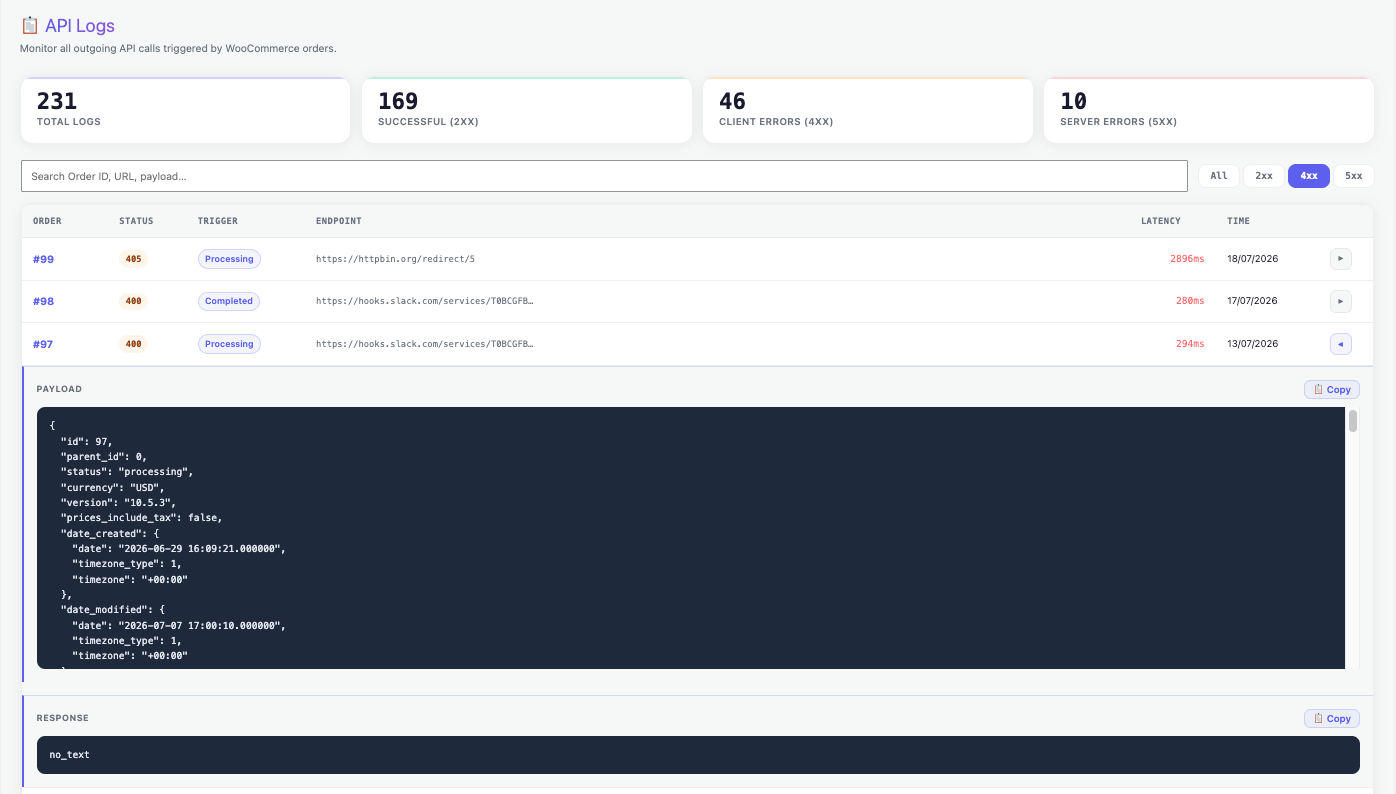
Use the HTTP status and API response together when diagnosing a failed integration.Troubleshooting a 400 response
HTTP 400 generally means the receiving API could not accept the request as submitted.
Possible causes include:
- A required field is missing
- A field contains an invalid value
- The receiving API expects a different JSON structure
- The request does not follow the API’s validation rules
Start by reading the Response field.
Then compare your outgoing data with the documentation for the receiving API.
If the destination only needs specific WooCommerce fields, Lite users can use JSON Filter to shape the outgoing payload.
Troubleshooting 401 and 403 responses
HTTP 401 and HTTP 403 are both related to access, but they do not always mean the same thing.
HTTP 401
A 401 response commonly indicates that authentication is missing, invalid, or expired.
Check:
- Bearer Token value
- Basic Auth username and password
- Whether the token has expired
- Whether the receiving API expects a different authentication method
HTTP 403
A 403 response commonly means the receiving service understood the request but is refusing access.
Possible causes include:
- Insufficient API permissions
- Missing scopes
- Account or role restrictions
- IP restrictions
- API-provider security policies
Read the response from the provider before replacing a credential that may already be valid.
Troubleshooting a 404 response
A 404 response means that the receiving server could not find the requested resource.
Check:
- The full endpoint URL
- API version path
- Resource or object ID
- Typographical errors
- Whether the endpoint still exists
A 404 does not always mean the domain itself is wrong. The server may be reachable while the specific API route or resource is not.
Troubleshooting a 500 response
A 500 response indicates that the receiving server encountered an internal error while processing the request.
Do not automatically assume that this proves the integration is configured correctly.
Instead:
- Read the Response.
- Confirm that the payload follows the receiving API’s documented format.
- Retry if appropriate.
- Check the external service’s status or server logs if you control it.
If the same valid request repeatedly causes a 500 response, the receiving service may need further investigation.
What if no API log entry appears?
If no log entry appears after an order event, the problem may have occurred before an HTTP request was sent.
Start by checking:
- Whether the integration is enabled
- Whether the selected WooCommerce trigger matches the event you tested
- Whether the order actually reached the expected status
- Whether you are looking at the correct integration and test order
Then create a fresh test order rather than relying only on an older order event.
For the integration setup:
Test an integration with webhook.site
When you are setting up a new integration, a temporary webhook endpoint can help separate AnyAPI configuration from the final destination API.
The WooCommerce API Integration Setup guide uses webhook.site so you can see whether a request leaves WordPress and inspect the data that arrives.
WooCommerce API Integration Setup →
This can be especially useful before connecting an ERP, CRM, fulfilment service, or custom production API.
Next steps after reviewing your WooCommerce API logs
If the log identifies a configuration problem, use the relevant guide below:
- Order API Integration → — Review endpoints, methods, triggers, and integration configuration.
- API Key Management → — Review Bearer Token and Basic Auth credentials.
- JSON Filter Mode → — Control the WooCommerce payload sent to the destination API.
- WooCommerce API Integration Setup → — Test a new integration from start to finish.
For a general reference to HTTP response codes, see the MDN documentation:
MDN HTTP response status codes →
Frequently Asked Questions
API Logs & Troubleshooting FAQ
Does AnyAPI automatically retry failed WooCommerce API calls?
Yes. When a call fails with a temporary error — HTTP 429, 502, 503, 504, or a connection-level WP_Error — AnyAPI automatically retries it once through a background WordPress Cron channel, so a brief outage on the receiving side does not cost you the order data. The retry runs asynchronously and never blocks your order from saving, and it respects the destination’s Retry-After header up to a 300-second cap. Permanent errors such as 400, 401, or 404 are not retried, because resending an unchanged request would only fail again. Your log records only the final outcome, and this works identically on every plan, including free Starter.
What are the API log limits on the free AnyAPI plan?
On the free Starter plan, the API Log page displays a static table of your 10 most recent calls, with no search, filtering, or pagination. That is enough for a quick check after setup, but limited when you are actively debugging. The Lite plan unlocks the full log: stats cards summarising your 2xx, 4xx, and 5xx responses, search by order ID or endpoint, status filters, pagination through your entire call history, and a Clear All Logs button for resetting after tests.
Why does my API log show latency but no status code?
When the Latency column shows a value but the Status badge stays blank, the request left AnyAPI and began waiting, but the receiving endpoint never returned a complete response before the connection timed out. This usually means the destination server is slow, overloaded, or unreachable at that URL. Confirm the endpoint is online and responds quickly to a manual test, and check the URL for typos or a missing path. Unlike a 4xx or 5xx result, a blank status means no full reply was ever received.
How do I fix an HTTP 400 error when sending WooCommerce orders to an API?
An HTTP 400 means the receiving API treated your payload as malformed or missing a required field. WooCommerce produces a large order object by default, and many APIs reject anything they do not recognise. The fix is to send only the fields the API expects: switch to Advanced or Expert filter mode in AnyAPI and shape the payload to match the API’s required structure. Read the Response column in the log first — it usually names the exact field that caused the rejection, which tells you what to adjust.
What does an HTTP 401 or 403 error mean in my WooCommerce API log?
A 401 or 403 status means your request reached the endpoint but the receiving API rejected its credentials. The API key, Bearer token, or Basic Auth details AnyAPI sent were missing, incorrect, or expired. Open API Key Management and confirm the credential is entered exactly as the external service expects, with no extra spaces, then save and place a test order. Any 4xx code points to something on your side of the request — the configuration — rather than a fault in AnyAPI itself.
Why is my WooCommerce API call not appearing in the logs?
If a request never shows up in your AnyAPI logs, the integration’s trigger did not match the order’s status change. AnyAPI only fires — and only records a log entry — when the exact event you selected happens, such as an order moving to Processing or Completed. Open your Order API integration, confirm the selected trigger matches the status transition you are testing, then place a fresh test order. If nothing still appears, the order is likely not reaching that status at all, so no integration is being triggered to log.