
A WooCommerce JSON filter lets you control exactly what data AnyAPI sends to your API, instead of forwarding the entire order object. This guide covers Advanced and Expert filter mode in detail, including the full {{variable}} reference table you need for custom payloads. Both modes require the Lite plan or above.
The Three WooCommerce JSON Filter Modes at a Glance
Before diving into Advanced and Expert mode, here is a quick recap of all three options:
| Mode | Available On | What It Does |
|---|---|---|
| Basic | All plans | Sends the complete order object automatically |
| Advanced | Lite+ | Sends only the fields you tick from a checkbox list |
| Expert | Lite+ | Sends a custom JSON structure you write yourself |
If you have not set up Basic mode yet, start with the Order API Integration guide first, then return here once you are ready for a custom WooCommerce JSON filter.
Advanced Mode: Build a WooCommerce JSON Filter by Checkbox
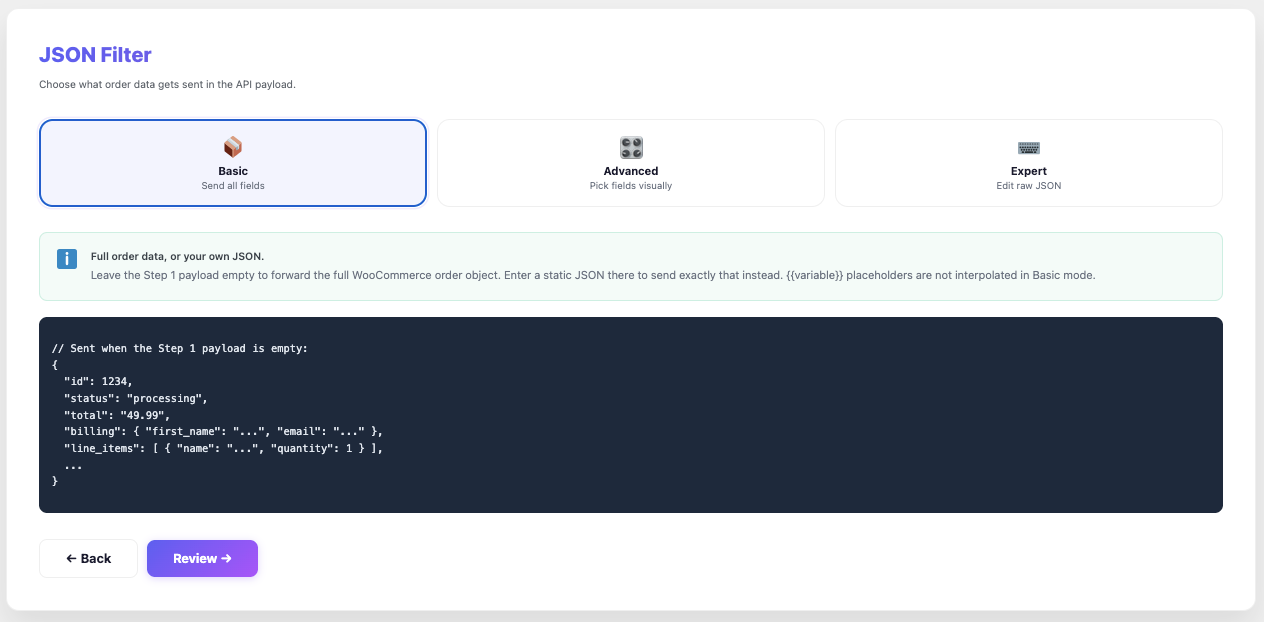
In Advanced mode, you select individual fields from a checkbox list instead of writing JSON by hand. As a result, this is the safest way to build a WooCommerce JSON filter without risking a syntax error.
To configure Advanced mode:
- First, click the Advanced filter mode tab in Step 3 of the setup wizard.
- Then, browse the field categories: Order, Billing, Shipping, Meta Data, Line Items, Tax Lines, Shipping Lines, Fee Lines, and Coupon Lines.
- Next, tick the checkboxes for the fields your API needs.
- Finally, drag fields up or down to reorder them if your endpoint expects a specific sequence.
Nested fields use dot notation. For instance, billing.email refers to the customer’s billing email, while line_items.name refers to each product name inside the order. In addition, collection fields like line_items.* send every matching item as an array — useful when your API needs the full product list, not just the top-level order summary.
Note: Once selected, the payload only includes the fields you checked. Therefore, any field you leave unticked is left out of the request entirely.
Expert Mode: Write a Custom WooCommerce JSON Filter
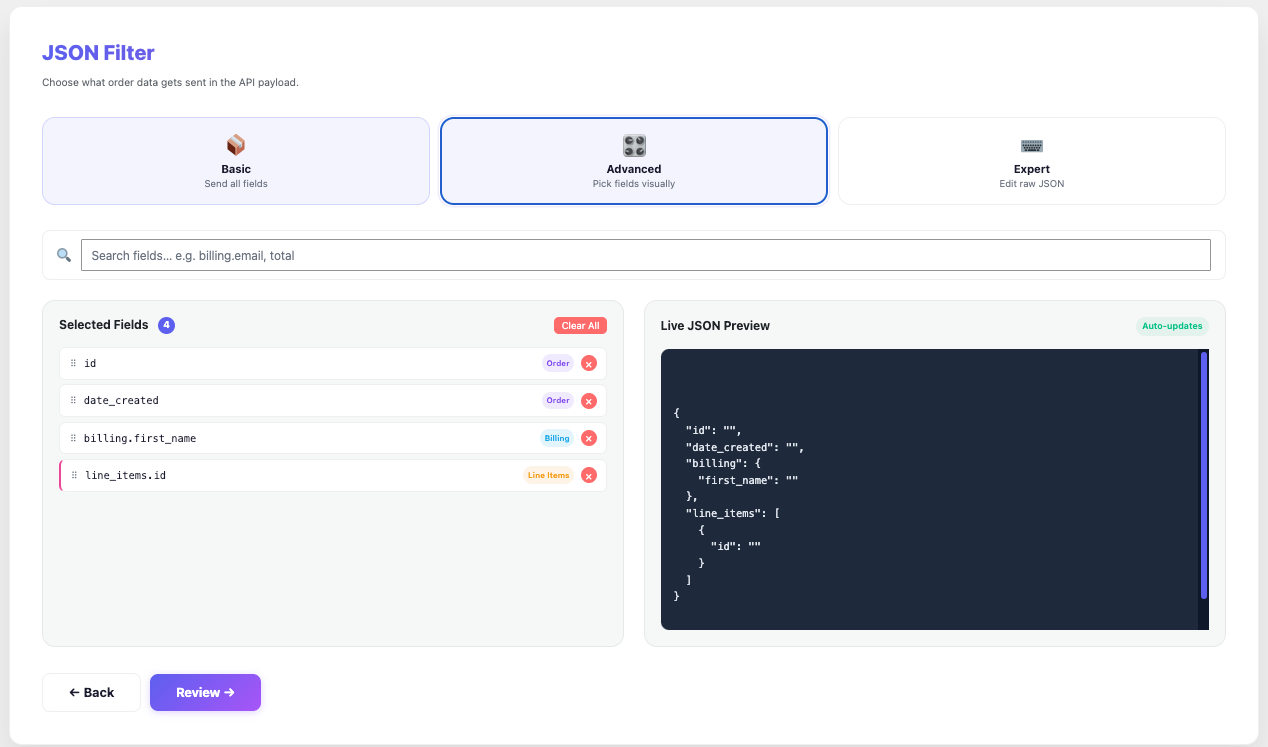
In contrast, Expert mode hands you a blank text editor. Instead of picking fields, you write the exact JSON structure your API expects, then insert order data using {{variable}} placeholders.
For example, a minimal Expert mode payload might look like this:
{
  "order": "{{order_id}}",
  "customer_email": "{{billing_email}}",
  "amount": "{{order_total}}"
}
When the trigger fires, AnyAPI replaces every {{variable}} with the matching order value before sending the request. Similarly, any text outside the double curly braces stays exactly as you typed it.
Note: If the JSON you enter is not valid, the wizard blocks you from continuing until you fix the syntax error. Consequently, it is worth pasting your draft into a JSON validator first if you are unsure.
Full {{variable}} Reference
The table below lists every variable available in Expert mode.
| Variable | Description |
|---|---|
{{order_id}} | Order ID |
{{order_number}} | Order display number |
{{order_status}} | Order status |
{{order_date}} | Creation timestamp |
{{order_total}} | Total amount |
{{order_subtotal}} | Subtotal |
{{order_currency}} | Currency code |
{{payment_method}} | Payment method slug |
{{payment_title}} | Payment method name |
{{billing_first_name}} | Billing first name |
{{billing_last_name}} | Billing last name |
{{billing_email}} | Billing email |
{{billing_phone}} | Billing phone |
{{billing_address_1}} | Billing address line 1 |
{{billing_address_2}} | Billing address line 2 |
{{billing_city}} | Billing city |
{{billing_state}} | Billing state or province |
{{billing_postcode}} | Billing postcode |
{{billing_country}} | Billing country code |
{{billing_company}} | Company name |
{{shipping_first_name}} | Shipping first name |
{{shipping_last_name}} | Shipping last name |
{{shipping_address_1}} | Shipping address line 1 |
{{shipping_address_2}} | Shipping address line 2 |
{{shipping_city}} | Shipping city |
{{shipping_state}} | Shipping state or province |
{{shipping_postcode}} | Shipping postcode |
{{shipping_country}} | Shipping country |
{{customer_id}} | WordPress user ID |
{{customer_note}} | Order note |
{{items_json}} | Line items as a JSON array string |
{{items_count}} | Number of line items |
{{site_url}} | Your site URL |
{{site_name}} | Your site name |
Advanced vs. Expert: Which Should You Use?
In short, choose Advanced mode when your API accepts a flat or nested subset of standard order fields, since the checkbox UI prevents typos and syntax errors. On the other hand, choose Expert mode when your API expects a custom JSON shape that does not match AnyAPI’s field structure — for example, a third-party CRM with its own required field names.
Furthermore, Expert mode is the only option that supports mixing literal text with variables in the same string, such as "Order {{order_id}} just shipped". Advanced mode always sends raw field values without surrounding text.
Troubleshooting Your WooCommerce JSON Filter
If your payload is not arriving the way you expect, check the API Logs & Troubleshooting page first. Specifically, the Response column shows exactly what the receiving API said, which usually points straight to the problem.
A few common issues:
- First, a variable prints literally — If
{{order_id}}appears unchanged in your payload, double-check the spelling. AnyAPI only replaces variables that exactly match the reference table above. - Second, HTTP 400 from your endpoint — This usually means a required field is missing or misnamed. Compare your JSON keys against what your API’s documentation expects.
- Finally, empty or partial line items — Use
{{items_json}}in Expert mode, or theline_items.*collection fields in Advanced mode, rather than trying to reference a single line item by index.
For the full list of HTTP status codes and what they mean, see the MDN HTTP response status codes documentation.
Next Steps
Now that you understand how to build a custom WooCommerce JSON filter, these related resources can help:
- Order API Integration — Set up your first trigger and endpoint.
- API Logs & Troubleshooting — Debug a failed payload using the Response column.
- Feature Comparison — Confirm which plan unlocks Advanced and Expert mode.