
The AnyAPI Dashboard is the central place for managing WooCommerce API integrations, credentials, testing tools, logs, and payload settings.
If you are not sure where to begin, this guide explains what each main AnyAPI function is used for and links you to the appropriate setup documentation.
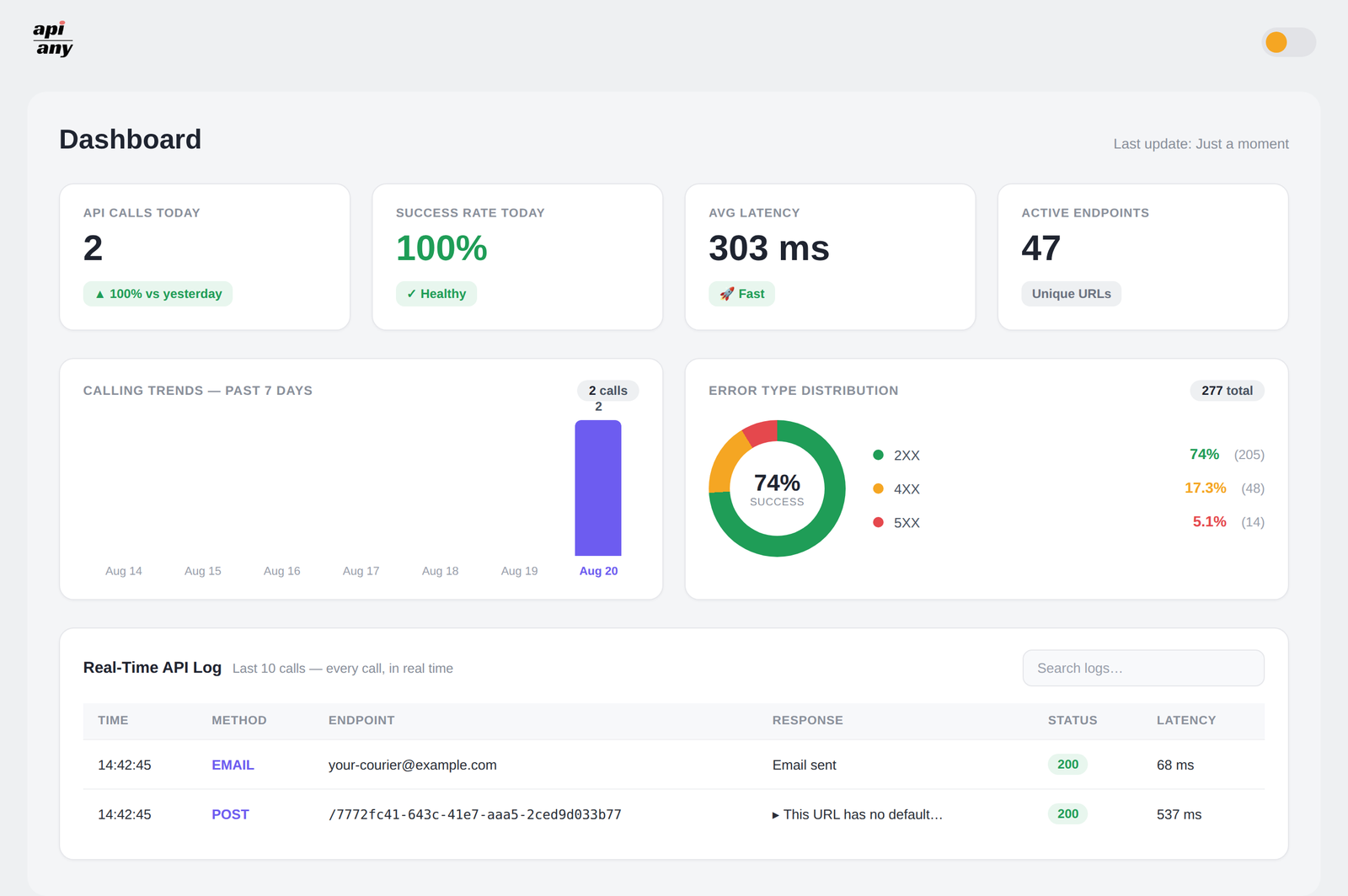
What can you do from the AnyAPI Dashboard?
The AnyAPI Dashboard brings together the main tools you need to connect WooCommerce with external APIs and troubleshoot those integrations.
Depending on what you want to do, you can use AnyAPI to:
- Set up a WooCommerce order API integration
- Configure API authentication and credentials
- Test WooCommerce REST API endpoints
- Review API requests and responses
- Troubleshoot failed integrations
- Control the JSON payload sent to an external API
- Compare available AnyAPI features and plans
If you are setting up AnyAPI for the first time, start with the WooCommerce API Integration Setup guide.
WooCommerce API Integration Setup →
Set up a WooCommerce API integration from the AnyAPI Dashboard
Use the WooCommerce API Integration Setup guide when you want to connect WooCommerce to an external API or webhook for the first time.
The guide walks through the basic setup process and helps you configure and test your first API integration.
Start the WooCommerce API Integration Setup →
Configure Order API integrations
Use Order API Integration when you need to control how WooCommerce order data is sent to an external API.
This includes configuring the destination endpoint, HTTP method, WooCommerce order trigger, and the payload sent with the request.
Manage API credentials in the AnyAPI Dashboard
Some external APIs require authentication before they will accept a request.
Use API Key Management to manage reusable credentials for your AnyAPI integrations, including supported Basic Auth and Bearer Token configurations.
Test WooCommerce REST API endpoints
AnyAPI includes tools for testing WooCommerce REST API requests directly from WordPress.
If you are using the REST API Tester for the first time, begin with the quick-start guide:
For a more detailed walkthrough of testing WooCommerce REST API endpoints:
How to Test the WooCommerce REST API Inside WordPress →
Review API logs from the AnyAPI Dashboard
If an integration fails, returns an unexpected response, or does not behave as expected, check the API logs before changing the integration configuration.
The API Logs & Troubleshooting guide explains how to review requests and responses and investigate common API integration problems.
Control the JSON payload
Use JSON Filter Mode when you need more control over the WooCommerce order data sent to an external API.
The JSON Filter guide explains the available filtering modes and how they can be used to shape the outgoing payload.
Compare AnyAPI features
If you need to check which AnyAPI features are available in your plan, use the Feature Comparison guide.
It provides a reference for comparing the available AnyAPI plans and features.
What should I do first in the AnyAPI Dashboard?
If you are new to AnyAPI, a practical setup order is:
- Install and activate AnyAPI.
- Open the WooCommerce API Integration Setup guide.
- Configure API credentials if the destination API requires authentication.
- Create your WooCommerce order API integration.
- Configure the trigger and payload.
- Send a test request.
- Review the API logs if the request does not behave as expected.
Start the WooCommerce API Integration Setup →
Need more AnyAPI documentation?
You can browse the main AnyAPI documentation hub for setup guides, feature references, troubleshooting information, and WooCommerce integration examples.
If you have not installed AnyAPI yet, you can also view the plugin on the official WordPress.org Plugin Directory.